Bolt has moved to boltapp.com. Stores still using bolt.com hosts must update now: see the migration guide.

📍 Bolt Help / Dashboard / Checkout Settings
Checkout Settings
Learn about how you can manage and customize your checkout appearance, user experience, and more.

NOTE

This page is being updated for the current Merchant Dashboard.

Checkout Settings are available to most merchants who use Bolt Checkout. If you don’t see these settings available in your dashboard, contact your Customer Success Manager to discuss availability for your specific implementation.

Merchants can define and preview their checkout modal experience using configurations found in the Checkout Settings page of the Bolt Merchant Dashboard.

The Configuration tab also holds your checkout logo, shipping destinations, and fees. See Related settings.

How to Manage Checkout Settings

  1. Log into your Bolt Merchant Dashboard.
  2. Navigate to Checkout > Configuration and scroll to Checkout settings.
  3. Open the section that holds the setting, such as Checkout UI, Shipping & Delivery, or Payment. To find a setting by name, use Search settings.
  4. Turn the setting on or off. Settings marked Advanced Mode in the tables below appear only after you turn on Advanced Mode.
  5. Select Save. To undo unsaved changes, select Discard.

A setting labeled Bolt-managed can only be turned on by Bolt. The note under it explains how to request it.
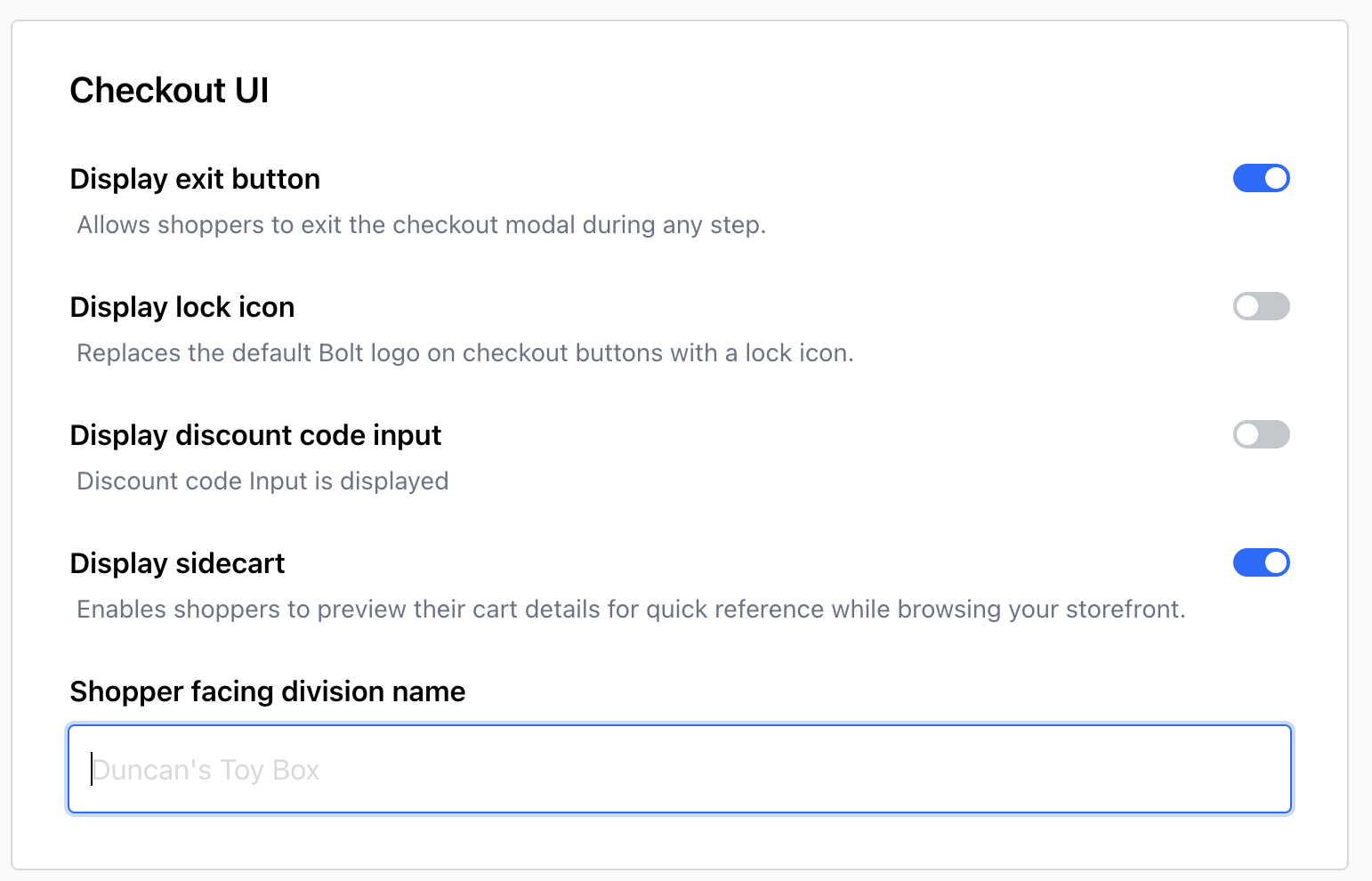
preview options

Checkout UI

Setting Description Advanced Mode
Display lock icon Replaces the default Bolt logo on checkout buttons with a lock icon. Yes
Display discount code input Allows shoppers to add discount codes, store credit, and other promotions to their cart. No
Display sidecart Enables shoppers to preview their cart details for quick reference while browsing your storefront. No

WARNING

Make sure you have set up your discount endpoint URL before enabling discount codes in your checkout experience.

The UI Configuration section on the same tab sets the Shopper facing division name shown in checkout.

Shipping & Delivery

Setting Description Advanced Mode
Show company name field Allows shoppers to provide their company name, if relevant, to their order. Yes
Require company name Prevents checkout from completing if the company name field is empty. Turn on Show company name field first. Yes
Allow delivery notes Allows shoppers to provide special requests or gift messages related to their order. No
Enable SMS shipping updates opt-in Allows shoppers to check a box to receive SMS delivery updates. Yes

Payment

Setting Description Advanced Mode
Show billing address on payment step Displays billing address inputs on the payment step. No
Require billing zip code Prevents checkout from completing if the billing zip code is empty. No
Display card input as a single line Displays the credit card input fields (card number, CVV, and expiration date) as one line. Yes
Show terms & conditions above Pay button Displays the Terms & Conditions above the Pay button; default is below. Yes

Related settings

See the following pages for related checkout settings.

All Checkout Settings

Add-Ons
Enable your shoppers to add more products, fees or services to their cart during checkout.
6 articles
Address Verification Process
This feature verifies and validates a shopper's address in Bolt Checkout.
Always Available Checkout
This feature enables you to display an express checkout button that follows shoppers throughout the store.
2 articles
Checkout Analytics & Tracking
How to set up Checkout Analytics for Bolt Checkout.
Checkout Buttons
Learn how to add checkout buttons to your storefront.
5 articles
Checkout Cart Groups
This feature allows you to sort and group items visually in a shopper's cart by label.
Checkout Configurations
How to manage checkout settings in the Bolt Merchant Dashboard.
Checkout Logo
This feature displays the merchant's logo in the Bolt Checkout modal.
Checkout Type Routing
How to route each type of checkout to a different processing method.
Custom Notices
This feature enables merchants to display custom notices (such as shipping notices) in Bolt Checkout.
Custom UI Copy
This feature enables you to override Bolt's default messaging within the Checkout modal.
Delivery Subtext
Add up to 60 characters of text below delivery options in checkout (via API).
Discount Codes
This feature lets shoppers apply and remove one or many discount codes during checkout.
Dynamic Custom Fields
Learn about adding dynamic custom fields to your checkout experience.
Fees
This Checkout Setting lets you add fees to a shopper's cart.
Gift Cards
This feature lets shoppers apply and remove gift cards during checkout.
Gift Options
Learn about offering gift options in your store.
In-Store Pickup
This feature enables your shoppers to select an in-store pickup option during checkout.
Language Localization
This feature enables you to use a shopper's local language in Bolt Checkout, based on their location.
Location-Based Restrictions
This feature enables merchants to restrict shipping for certain locations.
Maps in Checkout
This feature enables shoppers to view and visually confirm their address during checkout.
Multi-Currency & VAT
This feature enables you to use currencies other than USD.
Order Notes
This feature enables shoppers to leave notes for the merchant on their order.
P.O. Box Restrictions
This feature disables shipment to P.O. Box addresses during checkout.
Private Label Credit Cards
Learn about how private label credit cards work with Bolt.
reCAPTCHA
This feature prevents bots from checking out on your store.
Shopper Notifications
This feature enables merchants to manage how shoppers are notified on their order statuses or abandoned carts.
1 article
Store Associate Checkout
This feature allows retail team to check out shoppers in-store via Bolt on a tablet or mobile device.
Store Highlights
How to set up Store Highlights to display in your checkout flow.
Strikethrough Pricing
How to set up Strikethrough Pricing for Bolt Checkout.
operations